
Universities Campaign Resources for Clubs
Current university clubs, find resources here to repost campaign content on your social media platforms. Continue to build an online presence over the summer as you head into the new academic year, to promote the sport to students.
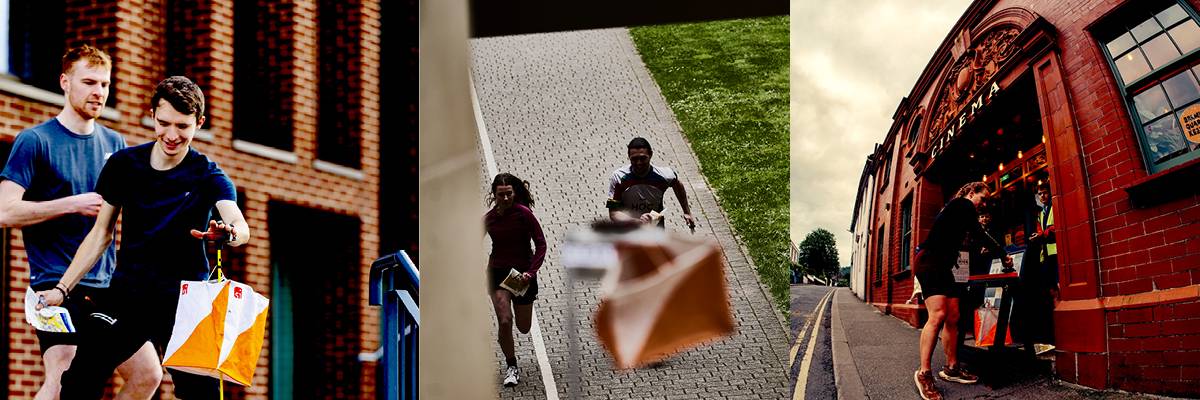
About the campaign
The aim of this campaign is to entice more individuals to consider signing up for a university orienteering club. We also hope to provide university orienteering clubs with the resources to boost their visibility.
This campaign aims to target the following demographics:
- University students
- School leavers
- Parents of the above
Support the campaign
How you can help us by sharing and supporting the new campaign.
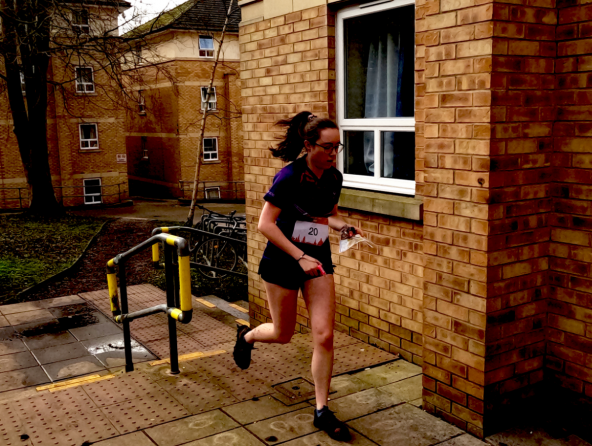
Share the campaign press release
Post our official press release on your website, or share our posts about the new campaign across your social media channels.
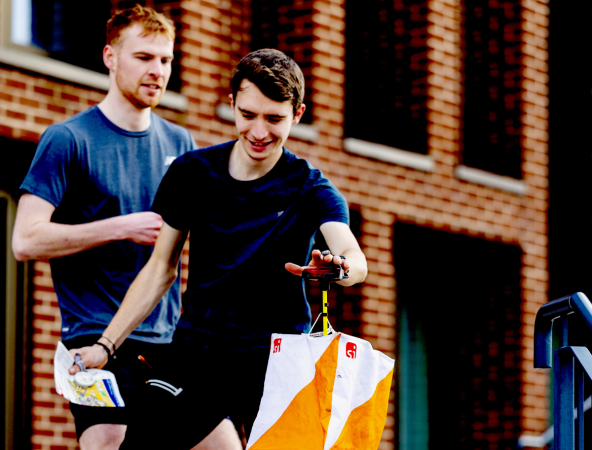
Upload our campaign video to your website
The link to our official campaign video ready to share. You could play this at your Freshers Fair to showcase university orienteering.
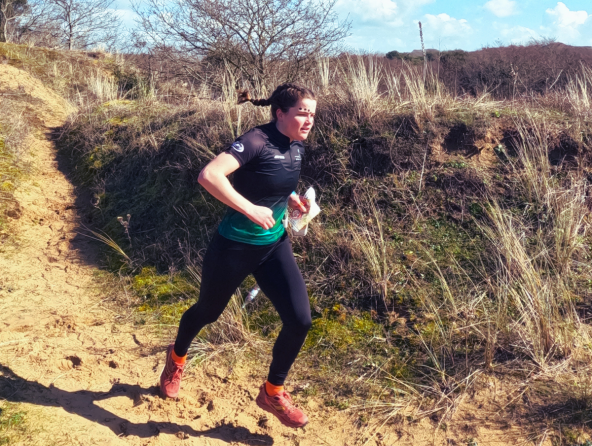
Upload our campaign reel to your socials
The link to our official campaign reel ready to share. In the Google album, you will find a reel with the wording 'Navigate Freshers' and one with 'Navigate Welcome Week'.
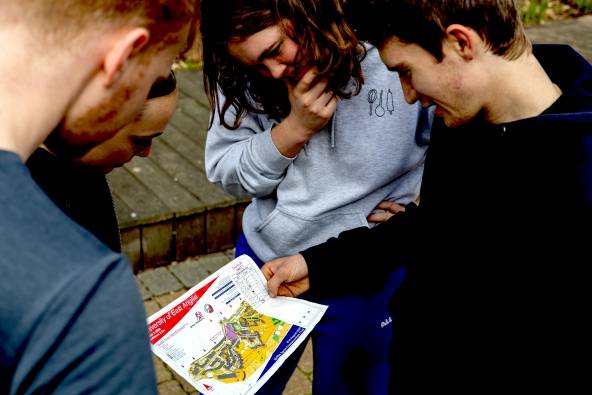
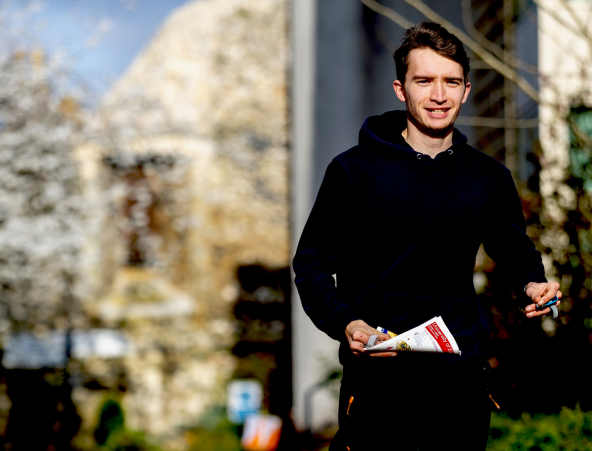
Use these social media images
Images from our campaign, ready to use and inspire. Of course, you can incorporate images from your own university orienteering club in and amongst these.
Wording for social media posts
Struggling for inspiration on what to post? Look no further, for we have done the hard work for you! Just copy and paste these, tailor to your club and start drawing in more participants and members.
Poster/Social Media Card for Promotion
A poster to promote orienteering to students at your university, with customisable versions.
Please use the free graphic design tool, Canva to modify your content in JPEG format. We highly recommend this format of updating your cards as it the easiest way to modify them. Simply create a free account, upload images, your club logo and access many more features to modify the blank templates. You can create and add QR codes in Canva too.
How to use these templates:
1. Save the template you would like to use to your device. There are different options for the templates, where you can choose whether you insert your own image or text, so take a look the files.
2. Open Canva, and select 'Create' and then 'Upload'. Upload the file you have just downloaded, and press 'Open'. A pop will appear asking where you would like to 'Use in a new design' or 'Edit image'. Select 'Use in a new design'. Then select 'Custom size', and ensure the size matches that stated below. Then 'Create the design'.
3. This will give you the template as an image in this design. Here you will be able to add your own image to the background, and your own text, and club logo.
4. To add an image to the background (if you have selected a blank template with no existing image), click 'Uploads' in the tool bar on the left of your screen. Upload your chosen image, and click to add this to your design. Then size up and send your image to the back (Left click your mouse, then select position). As many of the designs have been downloaded with a transparent background, adding your own image behind should be simple.
5. When your design is ready to download, click 'Share' in the topright had corner, and download as a png or jpeg.
If you need any further support on modifying or tailoring the social media card templates please get in touch: ggrant@britishorienteering.org.uk
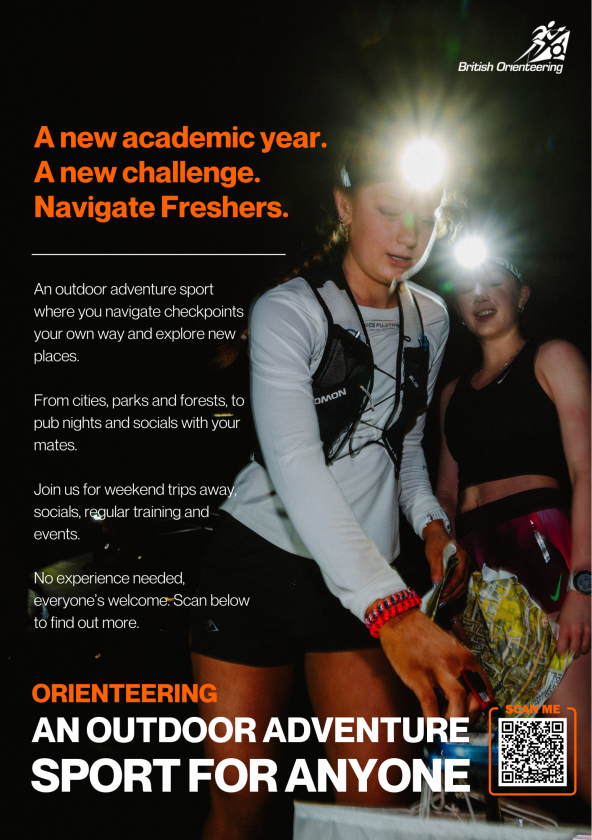
Main poster
Download the poster above, which links the QR code to the main campaign webpage.
Navigate Freshers
Navigate Welcome Week
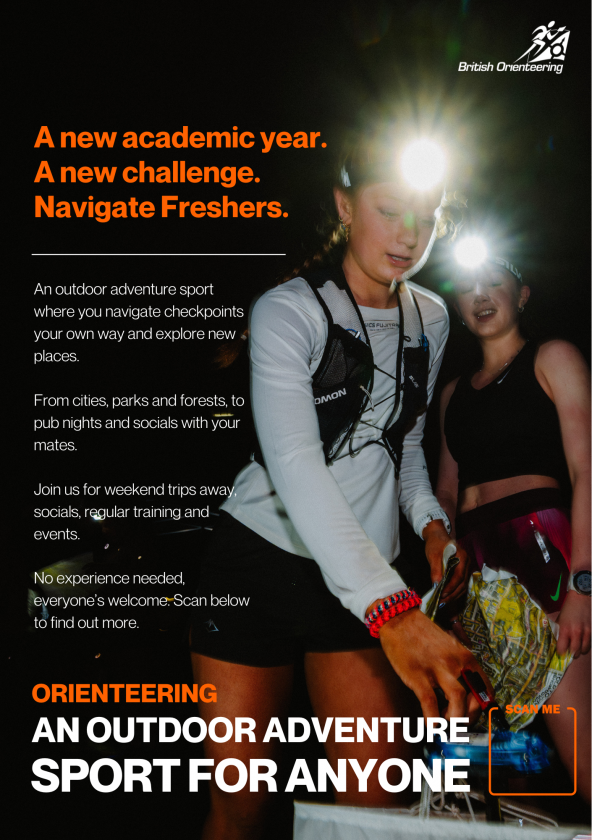
Main poster- no QR code
Download the poster above, and add your own QR code to link to your club website or social media.
Navigate Freshers
Navigate Welcome Week
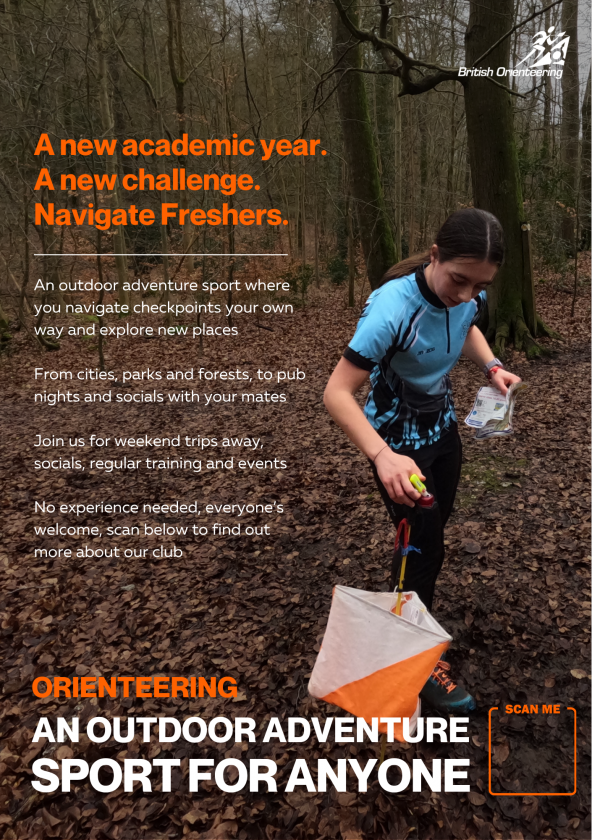
Poster- no image/QR code
Download the poster above, and add your own image and QR code to link to your club website or social media.
Navigate Freshers
Navigate Welcome Week
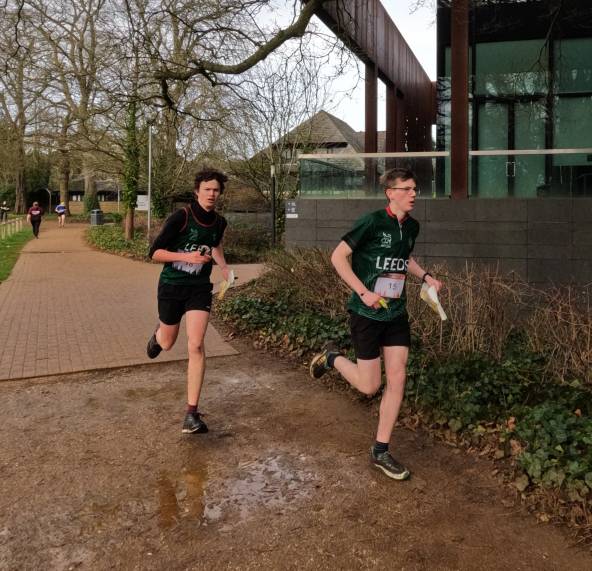
Imagery
Find imagery to use either on the link above for the campaign images, or on the link below.